After completing this lesson, you'll be able to:
In this lesson, you will:
After completing this lesson, you'll be able to:
In this lesson, you will:
The content used in this lesson builds on the previous two lessons in this course. To complete the exercise, please complete the exercises in Schedule a Workspace to Run and Schedule Workspaces with Automations first.
If you're taking a live Safe Software-hosted training course or using an on-demand lab for this course, we've already imported the content for this lesson into your FME Flow.
If you're completing this lesson with your own FME Flow, you must import the starting project with the content into your FME Flow.
See FME Flow Authoring: Instructions to Import the Starting Project for directions to import the project to your own FME Flow.
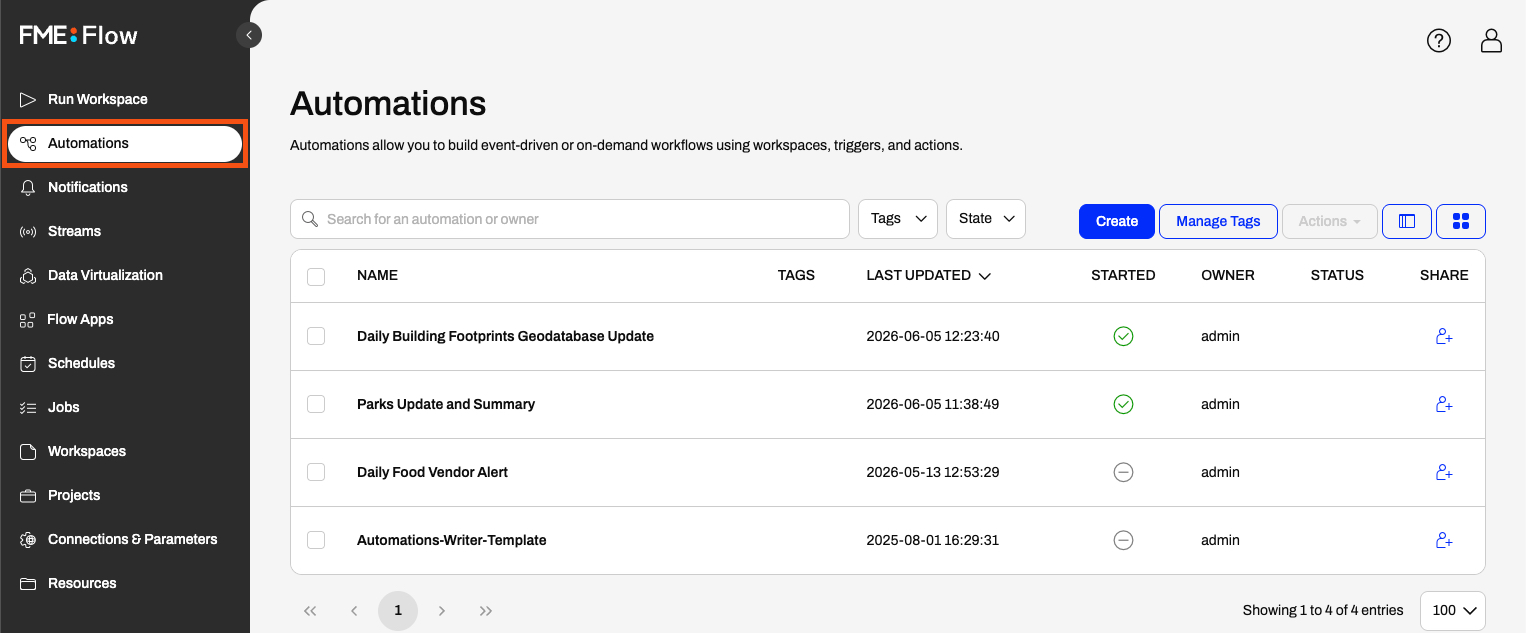
When you open Automations, FME Flow lists all the automations you have access to and displays some details and statistics about them. You may search automations by name and user, or filter by Tags or State (whether it's started or not). You can see details for each automation in the list view columns, such as whether it's started and its owner.
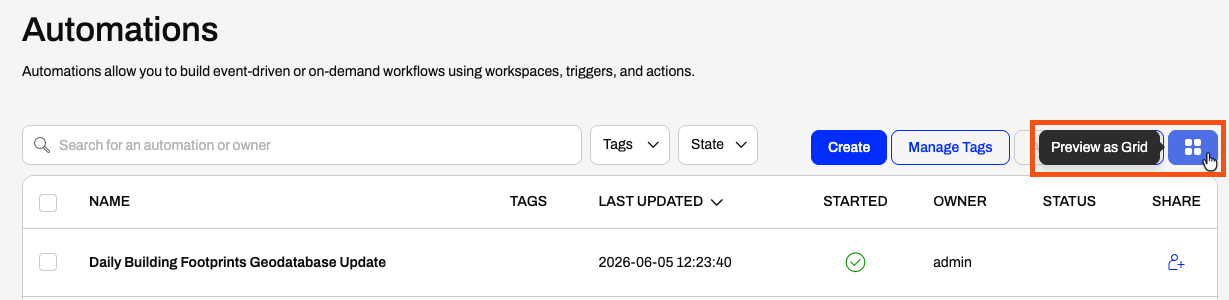
Automations also has a grid view option you can enable with the Preview as Grid button.
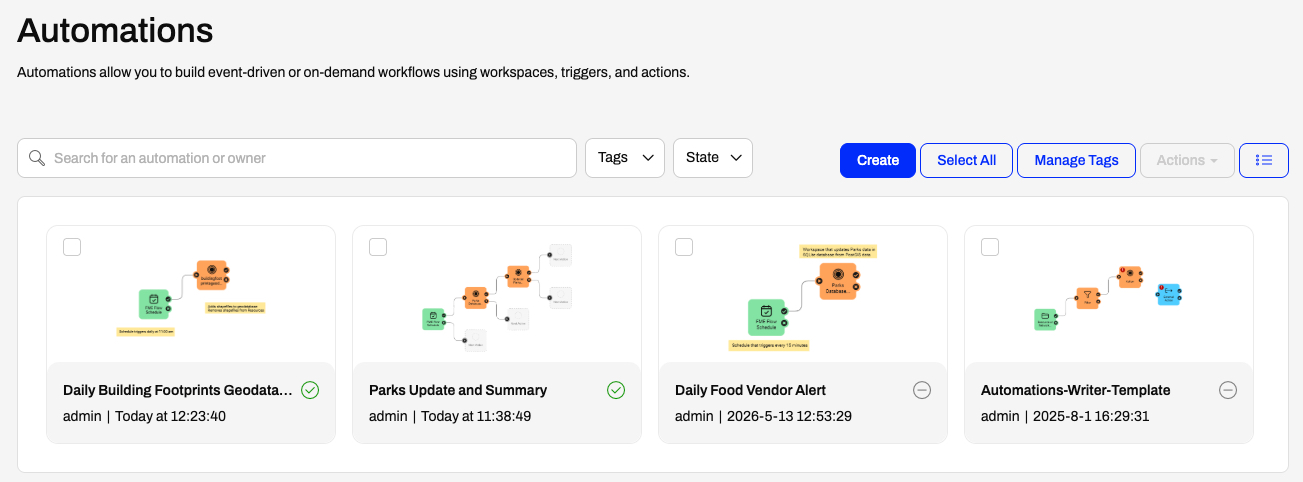
FME Flow displays a preview of each automation canvas and some details for each.
When you select an automation, you can perform additional operations from the Actions drop-down menu. You may start or stop an automation, view triggered jobs and log files, and perform other actions without opening the automation itself. Whether you view your automations as a list or a grid, these options are the same.
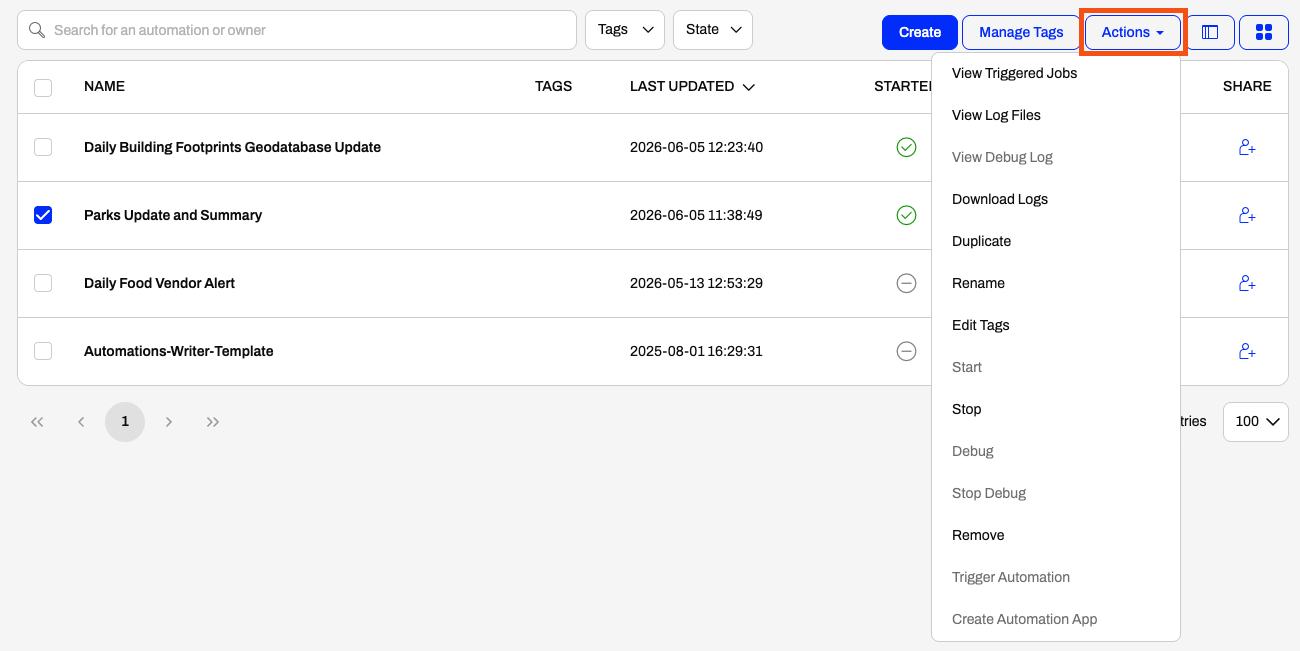
Some options are grey because they're not currently able to perform the action. For example, you cannot start an automation that is already running, and the Create Automation App option requires the automation to use a Manual Trigger.
Like automations, the Schedules page on FME Flow displays a list of schedules along with some information about each. You may see the recurrence interval and the workspace running on the schedule.
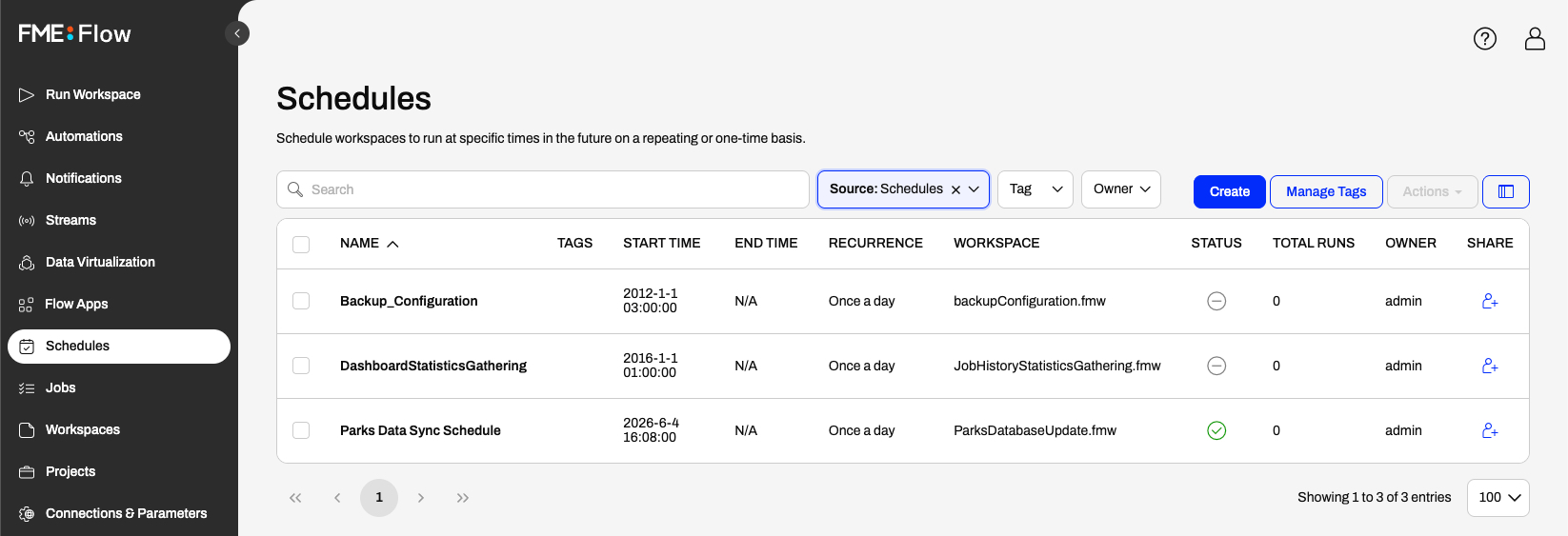
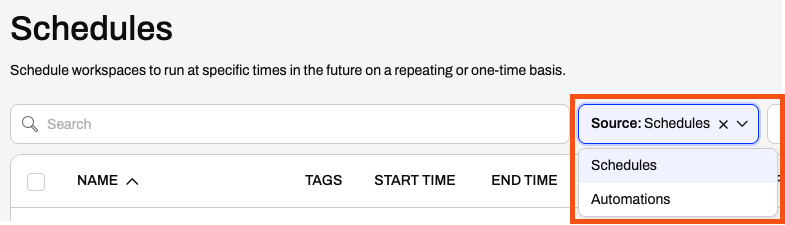
Schedules include an additional filter option: Source. By default, FME Flow selects Schedules for you. You can use the drop-down to choose Automations, which returns all automations that use a schedule trigger.
You may also remove the filter to show both Schedules and Automations running on a schedule. This view lets you see all your workflows running on a schedule, regardless of whether you created them as Schedules or Automations.
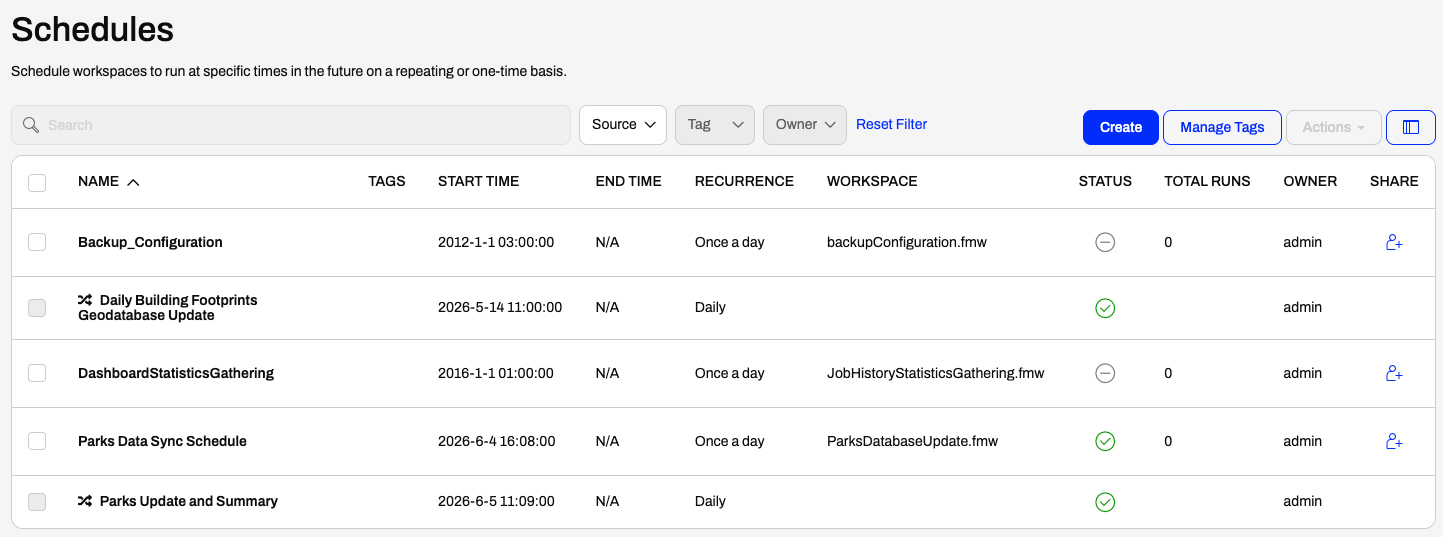
This icon denotes the Automations: 
You may still select Schedules and perform the same actions on them. To perform actions on the automations, you'll need to go to the Automations page on FME Flow. This page solely lists the automations that use a schedule trigger.

Jennifer has built a schedule and an automation that runs the same workspace on FME Flow to push updates between databases. The automation runs the same workspace as the schedule she built previously, and a second workspace to generate a summary of updates. Now, she will manage her automations and schedules on FME Flow and stop the duplicate schedule.
In this exercise, you will:
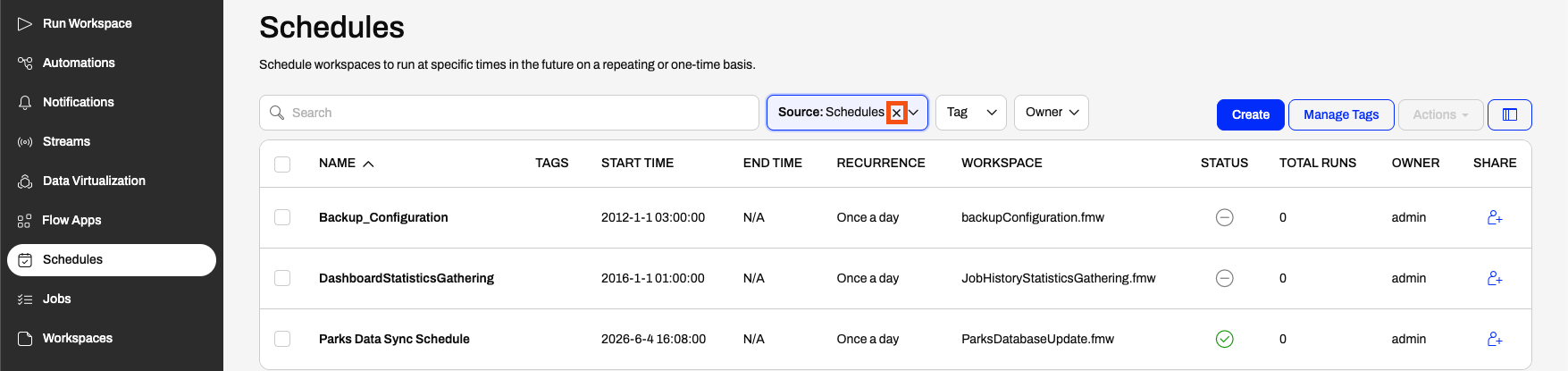
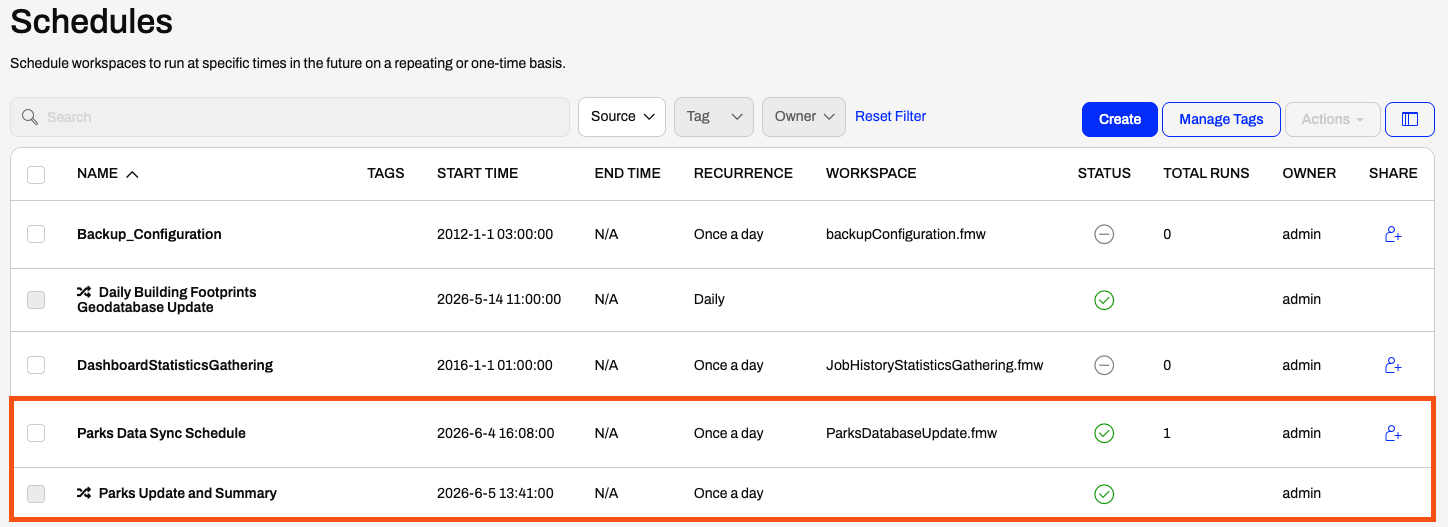
Since the automation expanded on the existing schedule workflow to include a second workspace, you do not need the schedule to run the first workspace.
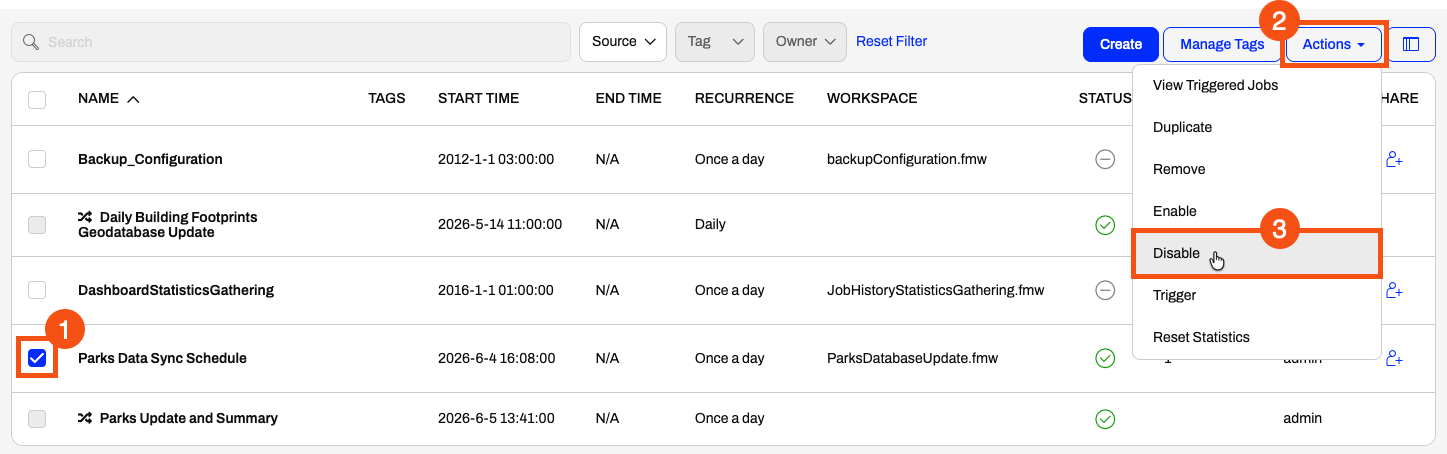
You've now managed schedules and automations on FME Flow. You disabled the Parks Data Sync Schedule, so now only the automation will run the workspaces for Jennifer daily.
The content used in this lesson builds on the previous two lessons in this course. To complete the exercise, please complete the exercises in Schedule a Workspace to Run and Schedule Workspaces with Automations first.
If you're taking a live Safe Software-hosted training course or using an on-demand lab for this course, we've already imported the content for this lesson into your FME Flow.
If you're completing this lesson with your own FME Flow, you must import the starting project with the content into your FME Flow.
See FME Flow Authoring: Instructions to Import the Starting Project for directions to import the project to your own FME Flow.
When you open Automations, FME Flow lists all the automations you have access to and displays some details and statistics about them. You may search automations by name and user, or filter by Tags or State (whether it's started or not). You can see details for each automation in the list view columns, such as whether it's started and its owner.
Automations also has a grid view option you can enable with the Preview as Grid button.
FME Flow displays a preview of each automation canvas and some details for each.
When you select an automation, you can perform additional operations from the Actions drop-down menu. You may start or stop an automation, view triggered jobs and log files, and perform other actions without opening the automation itself. Whether you view your automations as a list or a grid, these options are the same.
Some options are grey because they're not currently able to perform the action. For example, you cannot start an automation that is already running, and the Create Automation App option requires the automation to use a Manual Trigger.
Like automations, the Schedules page on FME Flow displays a list of schedules along with some information about each. You may see the recurrence interval and the workspace running on the schedule.
Schedules include an additional filter option: Source. By default, FME Flow selects Schedules for you. You can use the drop-down to choose Automations, which returns all automations that use a schedule trigger.
You may also remove the filter to show both Schedules and Automations running on a schedule. This view lets you see all your workflows running on a schedule, regardless of whether you created them as Schedules or Automations.
This icon denotes the Automations:
You may still select Schedules and perform the same actions on them. To perform actions on the automations, you'll need to go to the Automations page on FME Flow. This page solely lists the automations that use a schedule trigger.
Jennifer has built a schedule and an automation that runs the same workspace on FME Flow to push updates between databases. The automation runs the same workspace as the schedule she built previously, and a second workspace to generate a summary of updates. Now, she will manage her automations and schedules on FME Flow and stop the duplicate schedule.
In this exercise, you will:
Since the automation expanded on the existing schedule workflow to include a second workspace, you do not need the schedule to run the first workspace.
You've now managed schedules and automations on FME Flow. You disabled the Parks Data Sync Schedule, so now only the automation will run the workspaces for Jennifer daily.